Extract text from a scan with OCR
Use Tesseract on a sample notice, check dates and room numbers, and make the result searchable.
Check your install and sample
Install Tesseract with the instructions for your operating system. Run tesseract --version and tesseract --list-langs. Look for eng in the language list. If it’s missing, install the English language data using the same package manager or distribution.
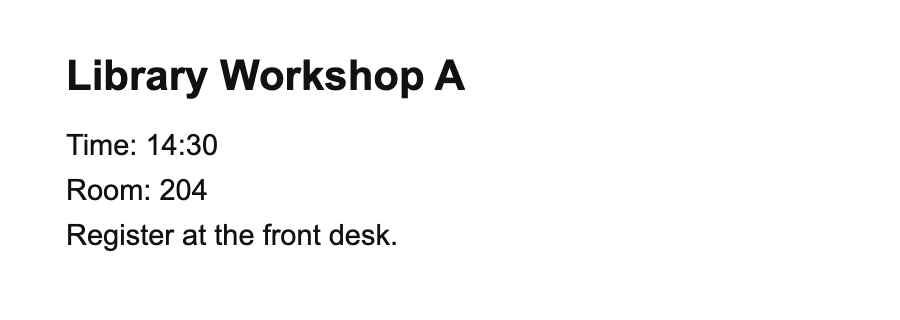
Save this sample notice as workshop.png. The same process works for a clear image exported from a scanned page.
Recognize the text
From the folder containing the image, run this command. -l eng selects English. --psm 6 treats the image as a single block of text.
tesseract workshop.png stdout -l eng --psm 6The output includes 14:30, Room 204, and the front desk. Compare each field with the original image. Blank lines and spacing can vary.
Make a scan searchable
Run the command again with workshop-ocr in place of stdout. Tesseract writes workshop-ocr.txt. Put it in the notes folder from the text search lab, rebuild the index, and search for “14 30.”
Try a phone photo of the notice at an angle. If characters disappear, crop around the text, straighten the image, and improve its contrast. For several columns, try the default automatic page segmentation or crop each column first. For a different language, choose its installed language code.
Check your understanding
What is the next step if OCR reads Room 204 as Room 2O4?
Compare the output with the image and correct the room number in the text file before indexing or extracting fields.
Sources
Progress is saved in this browser.